How to: SSH keys with PuTTY
Creating the SSH key pair
When installing PuTTY you also get an application called PuTTYgen
- Open PuTTYgen
- Click Generate
- Follow instructions (if there are any)
- It is HIGHLY recommended to set a passphrase for the key
- Save BOTH public and private keys
- The Private key is just for you!
- The public key is what you add to servers to allow the user who has the matching private key to log on to that server. If your are asked for a key, pubkey, etc, for authentication to a server, you should provide them ONLY with the public key.
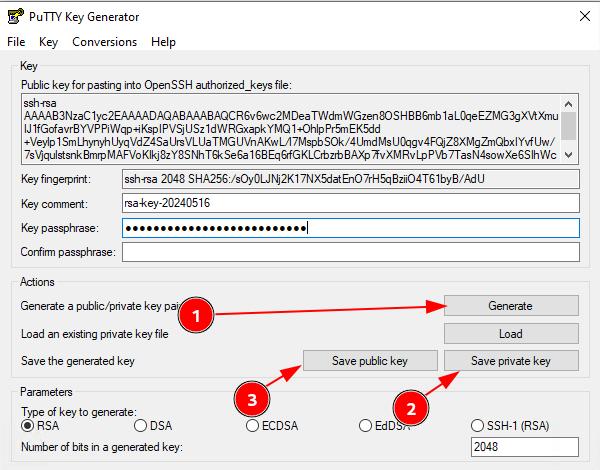
Sidenote: You can choose the type of key to generate. Google it if interested
Using the SSH key pair with PuTTY
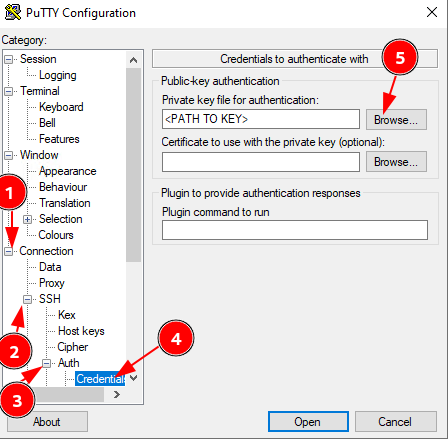
At this stage you have presumably added the public key has been added to the server you are trying to access. When going to connect to a server using the they you need to tell PuTTY to use it
- In the PuTTY left pane navigate to Connection -> SSH -> Auth -> Credential
- Under Private key file for authentication navigate to the private key you have already created. Putty private keys end with the extension .ppk
- Now you can navigate back to Session in the left pane and connect to the server as normal